
What is a stock card and how do you create one?
A stock card is the record that holds a product’s name, code or barcode, unit, purchase and selling price, VAT rate and quantity on hand in one place; every purchase, sale and count difference for the product is posted to this card, and the quantity the card shows is the sum of these movements. The accuracy of stock tracking depends on cards being opened once and opened correctly.
A second card opened for the same product, a wrongly chosen unit or an opening quantity written by guesswork is the source of most of the differences that show up in counts months later. This guide explains which fields a card should have, how to assign the code, and how to open a card step by step.
Which fields should a stock card have?
| Field | What it is for |
|---|---|
| Product name | A single way of writing it for every product: brand + product + attribute + size. “A4 paper”, “A4 Paper 80gr” and “a4 kagit” open three separate cards and the stock is split in three. |
| Stock code or barcode | A unique code that identifies the product independently of its name. If the manufacturer’s barcode exists, it is used; if not, you assign your own internal code. |
| Unit | The measure in which the stock is kept: piece, kilogram, litre, metre, box, pack. If the same unit is not used on purchase and sale, the quantity will never match. |
| Prices | The purchase (cost) price and the selling price are kept separately; profit calculation and stock value come from these two. |
| VAT rate | The tax rate applied to the product when it is sold. Because products in the same category can have different rates, it is written on each card individually. |
| Category and brand | For grouping products in reports and narrowing the list. With hundreds of items, it is the fastest way to find what you are looking for. |
| Opening stock | The quantity counted on the shelf on the day the card is opened. An opening figure written by guesswork starts all later movements from a wrong balance. |
| Reorder level and shelf location | When to order and where the product sits in the warehouse. Not every program has these as separate fields; if not, they are written into the code or the category. |
Stock card example
A card a stationery shop opened for photocopy paper. The prices are only an example:
| Product name | Copier A4 Copy Paper 80 g, 500 sheets |
|---|---|
| Stock code / barcode | KRT-0001 (the manufacturer’s barcode, if there is one) |
| Unit | Pack |
| Purchase price | 120,00 ₺ |
| Selling price | 165,00 ₺ |
| VAT rate | %20 |
| Category / brand | Paper / Copier |
| Opening stock | 40 packs (count of 24.09.2026) |
| Reorder level | 15 packs |
| Shelf location | A-03-2 |
The aisle-rack-slot layout of a shelf location is explained in the shelf location system guide. If you want to keep this card in Excel with ready-made columns, the free inventory tracking Excel template contains the same fields.
The stock code on the card in brief
The code written on the card should be unique, short and of fixed length; it should not carry information that changes, such as price, supplier or shelf. A category prefix and a sequence number are enough: KRT-0001, KRT-0002. Every variant that is stocked separately gets its own code. A comparison of coding schemes, examples by industry and an automatic code formula in Excel are in the how to assign a stock code guide.
For a product that has a barcode, the manufacturer’s barcode is the safest code; for a product without one, we explain how to give it an internal code and print its label in the barcode inventory tracking guide.
How do you open a stock card? Six steps
1. Write the name in a single format
First decide on a naming rule and use the same one on every card: brand + product + attribute + size (e.g. “Copier A4 Copy Paper 80 g, 500 sheets”). Abbreviations and upper/lower case are part of the rule. A name where it is clear what to type in the search box prevents the same product from being opened a second time.
2. Assign a code or barcode
For a product that has a barcode, scan the manufacturer’s barcode. For a product without one, give it a unique internal code that carries no meaning and print its label. How to build the code is in the how to assign a stock code guide.
3. Choose the unit
Choose the unit in which you count the product. For a product you buy by the box and sell one by one, set the unit to the selling unit; when you receive the box, enter as many units as it contains. If the unit is changed later, the meaning of past movements changes too, so it must be chosen correctly on day one.
4. Enter the prices and VAT
Write the purchase price from the latest invoice and the selling price from the shelf price; take the VAT rate from the rate on the product’s invoice. A card with no price shows zero in the stock value and profit reports.
5. Count the opening stock and write it down
Count the quantity on the shelf on the day you open the card and write that. A figure carried over from a system or an old ledger is not an opening figure until it has been counted. For a bulk opening, enter the opening figures of all cards from a single count done on the same day; the how to do a warehouse count guide explains how to organise that day.
6. Set the category and the reorder level
Link the product to a category and work out when you will order. The formula for the reorder level (average daily sales × lead time × 1,2) is in the what is a reorder level guide.
The stock card in Ofisx
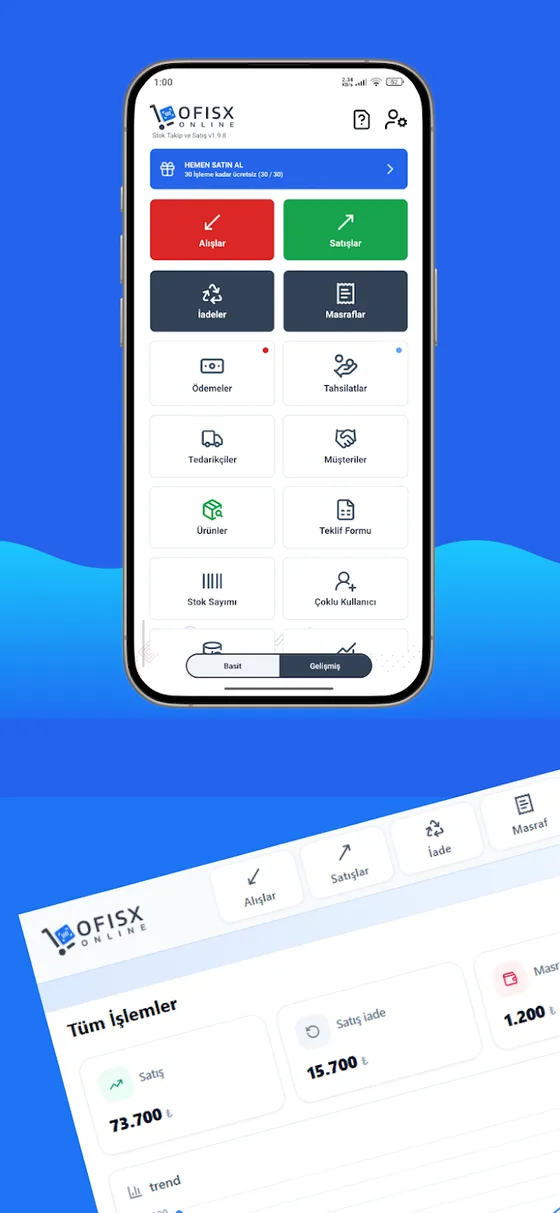
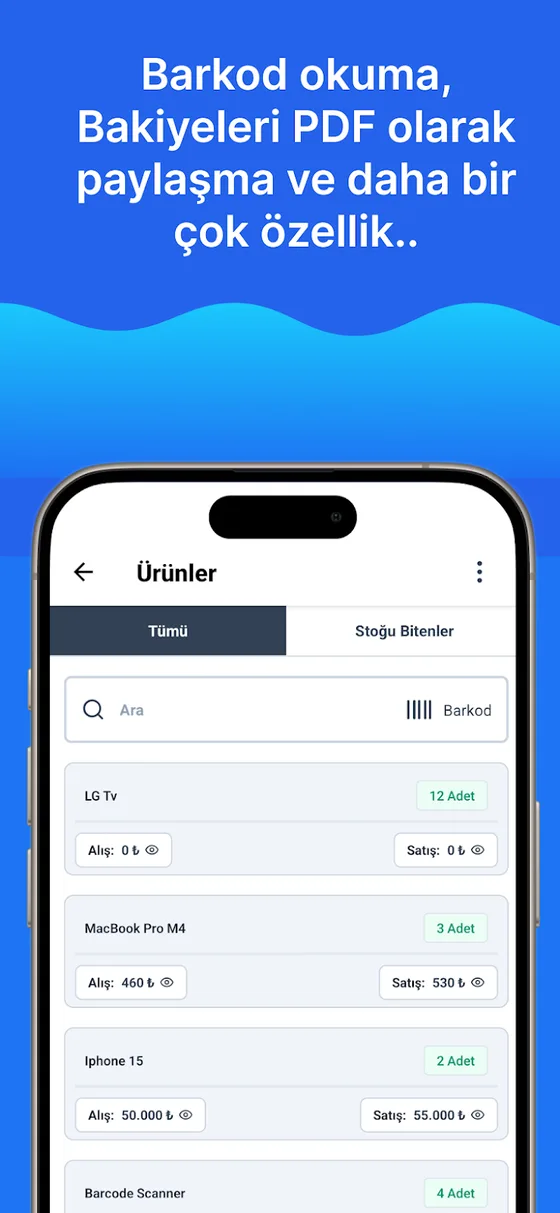
Ofisx’s add-product form has these fields: Product Name, Barcode, Stock Type (Piece, KG, lt, mt, Box, Pack), Price, Sale Price and Initial Stock. Brand and Category appear when they are enabled in the company settings, and Tax Rate appears on the form when the VAT setting is enabled. Defining more than one barcode for a product (Multiple Barcodes) and adding a product image are Premium features.
The form has no separate “stock code” field: the code that identifies the product is the Barcode field — you write the internal code you give to a product with no manufacturer barcode (such as KRT-0001) into this field. There is no separate field for the shelf location either; you track the location by writing it into the code or the category. Instead of opening hundreds of cards one by one, you can import your Excel list; once the cards are open, every sale and goods receipt updates the quantity automatically, and the low-stock alert works from that quantity. For the whole setup, see the how to track warehouse stock guide.
Frequently asked questions
What is a stock card?
It is the record that holds a product’s name, code or barcode, unit, prices, tax rate and quantity on hand in one place. Every movement for the product — purchase, sale, return, count difference — is posted to this card, and the quantity on the card is the sum of those movements. Stock tracking starts with cards being opened correctly.
Is a stock card the same as a product card?
Yes, they are two names for the same record. In accounting and pre-accounting software it is called a “stock card”; on the e-commerce and sales side it is called a “product card”. Both carry a product’s defining information and its quantity.
What information should a stock card have?
The essentials: product name, unique code or barcode, unit, purchase and selling price, VAT rate and opening stock. When category, brand, reorder level and shelf location are added, the card is sufficient both for searching and for ordering decisions.
How do you assign stock codes?
Give it a short, unique code that carries no meaning: a category prefix and a sequence number are enough (KRT-0001, KRT-0002). Do not put information that can change, such as price, supplier or shelf, into the code; when it changes, the code lies. Do not give the code of a product that has been discontinued to another product, or past reports get mixed up.
What happens if two stock cards are opened for the same product?
Sales may land on one card and purchases on the other: one goes negative, the other sits without any movement like dead stock, and neither matches in a count. When it is noticed, one of the cards is deactivated and its balance is transferred to the correct card based on a count.
Can a stock card be kept in Excel?
It can: each row is a card and the columns are the card’s fields. The limit in Excel is that movements are not posted to the card automatically — you update the quantity by hand with every purchase and sale. For a ready-made layout you can use the free inventory tracking Excel template; when the number of products and the frequency of movements grow, an app produces fewer errors.
Last updated: 2026-09-30
Product card and barcode in/out in the app
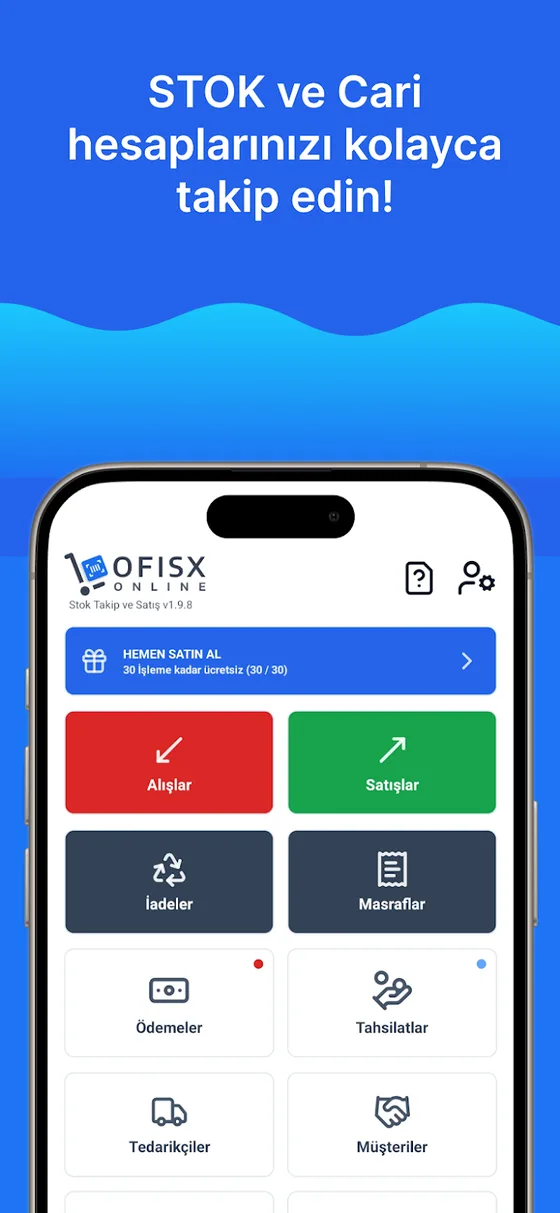
You open the card once; every sale and goods receipt updates the quantity automatically.

Open the cards once, let the app keep the quantity
Open a free account and import your Excel product list; your stock cards will be ready in minutes.