
How to do barcode stock tracking
Barcode stock tracking means matching every product with a unique barcode and recording stock movements by scanning that barcode. Setting it up takes six steps: separate the products that already have a barcode, generate your own code for those that don't, label them, enter the barcodes on the product card, choose your scanner, and scan at three points: goods receipt, sales and counting. Most products already have a barcode; the part you need to generate is usually a small minority.
A barcode doesn't set up stock tracking — it makes an established tracking error-free and fast. If products have no code and no record, there is nothing for a barcode to scan against. If your record system isn't set up yet, first complete the five steps in the how to do warehouse stock tracking guide; this page covers the barcode part of that system.
What is a barcode for, and how is it different from typing by hand?
The difference is not speed but error rate. Skipping a digit in a product code typed by hand, hitting an adjacent key and writing to the wrong row in the list are all everyday events; each of them silently corrupts stock, and the difference only shows up on counting day. A scanned barcode doesn't have these errors. The second benefit is that the record is made instantly: in a warehouse where entries are made in bulk at the end of the day, you never know what the stock is during the day.
Which barcode will you use?
You will come across three kinds of barcode, and they are not the same thing:
| Type | Where it comes from | Where it is valid | When you need it |
|---|---|---|---|
| EAN-13 (product barcode) | From the manufacturer, already on the packaging | Unique worldwide | If you buy and sell packaged goods — no need to generate it |
| Your own internal barcode | You generate it, you print it | Only in your own system | For loose goods, products without a barcode, or products you make yourself |
| Case (inner case) barcode | From the manufacturer, on the case | Case = multiple units | If you buy wholesale and sell by the unit; it is added as a separate barcode |
A GS1 membership and a real EAN-13 are needed only if you will sell your product to other retailers. For tracking in your own shop or warehouse, an internal barcode you generate is entirely sufficient and free.
Barcode stock tracking in six steps
1. Separate which products already have a barcode
Before you start, split your products in two. Products that arrive packaged from the factory already carry an EAN-13 barcode (those made in Turkey start with 868) — you don't need to generate them, just scan and record them. For products sold loose, made by you, or with packaging that has no barcode, you will be the one assigning the barcode. Making this distinction up front finishes half the job: in most businesses the majority of products are in the first group, and the only thing to do for them is scan.
2. Generate your own code for products without a barcode
There is only one rule to keep in mind when generating your own barcode: make the code unique and make it carry no meaning. A sequence number is safest (1001, 1002, 1003). Don't embed a product's attributes in the code — a code like "RED-M-01" starts to lie when the product's colour or size changes. These internal barcodes never leave the shop, so they don't have to follow the EAN standard; they only need to be unique in your own system. Keep the code range wide from the start: if you begin with 3 digits, you get stuck at product 999.
3. Print the label and stick it on the product
If the generated code isn't physically on the product, there is no barcode tracking. A thermal label printer is the most practical; for low volume, an A4 label sheet also does the job. Stick the label on a surface of the product that won't tear when it is opened, and cover it with clear tape in damp environments. Every unit of the same product carries the same label; don't print anything that changes per unit, like a serial number — stock tracking counts the product, not the unit.
4. Enter the barcodes on the product card — a product can have more than one barcode
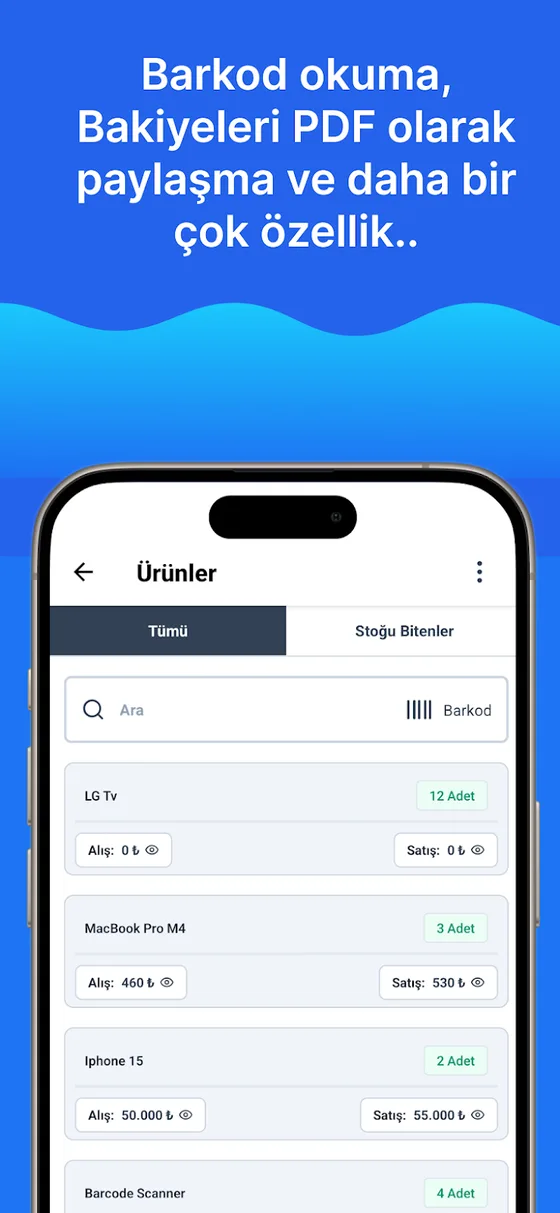
Enter each barcode in the relevant product record. The most commonly overlooked case here is this: the same product can carry more than one barcode. When you change supplier the same goods arrive with a different EAN, the case barcode and the single-unit barcode are separate, and old stock and new packaging sit side by side for a while. Ofisx's product card supports multiple barcodes — add the second and third barcode to the same product; this field is included in the Premium plan, and in the free account each product is tracked with a single barcode. Opening a second product card for the same goods splits the stock in two — this is the most common source of stock errors seen in barcode tracking.
5. Choose your scanner: phone camera or USB scanner
There are two ways, and the choice depends on volume. The phone app reads with the camera; it lets you work while walking around the warehouse without buying separate hardware, and is sufficient for low and medium volume. A USB (or Bluetooth) barcode scanner plugs into a computer and sends the code it reads as if it were typed on the keyboard; the scan box in the web panel works this way, the scanner types the code and presses Enter at the end. For busy goods receipt and at the till, a USB scanner is noticeably faster — a pace of one product per second can only be kept up with one.
6. Scan at every movement: goods receipt, sales, counting
The value of a barcode shows up when you record a movement, not when you set it up. Scan in three places: at goods receipt (scan the incoming carton to increase stock and check it against the delivery note), at sale or dispatch (so stock drops automatically), and during stock counts (walk the shelves in order and scan every product). The difference between scanning and typing during a count is not speed but accuracy: a large share of the discrepancies on hand-entered count sheets come not from missing goods but from numbers written on the wrong line.
Phone camera or USB scanner?
The choice is not about brand or budget; it is about how many times a day you will scan.
| Topic | Phone camera | USB / Bluetooth scanner |
|---|---|---|
| Extra hardware | Not needed | You buy a scanner |
| Speed | A few seconds per item | One item per second |
| Where it works best | Walking the warehouse, in front of the shelf | At a fixed point: checkout, goods receiving desk |
| Worn labels | May struggle | More tolerant |
| Best suited for | Low and medium volume, one-person warehouse | Busy goods receiving, checkout, counting teams |
Ofisx supports both: the phone apps read barcodes with the camera, while the scan box in the web panel works with a USB/Bluetooth scanner — the scanner sends the code as if it were typed on a keyboard and presses Enter at the end, and the product is found in the list instantly. Starting with a phone in a small warehouse and adding a scanner as volume grows is a common and sensible order.
Four common mistakes
Creating a second card for the same product. When the supplier changes and the goods arrive with a different EAN, opening a new product card splits the stock in two and both cards show the wrong quantity; the right approach is to add the second barcode to the same card. Embedding meaning in the code. Codes like “RED-M-01” become false when the product changes; use a sequence number. Printing the label where the packaging tears. A label that tears when the package is opened can't be scanned at returns and stock counts. Setting up barcodes but skipping scanning at one point. In a warehouse where goods are scanned at receipt but not at dispatch, stock only goes up; the benefit of barcodes comes from scanning at all three points.
How does a barcode change counting and the reorder level?
The payoff of barcodes is clearest in two places. In counting: a team that walks the shelves in order and scans every product never makes the “wrote it on the wrong line” errors that a team filling in a paper list does — we covered count-day preparation in the how to do a warehouse stock count guide. At the reorder level: because stock is accurate in real time, the “running low” alert arrives before you actually run out; in a warehouse that enters everything in a batch at the end of the day, the same alert always comes a day late. The threshold calculation is in the what is a reorder level guide.
A barcode identifies the product, and a shelf address ties it to the place where it can be found; neither replaces the other. For how to set up addressing, see the how to set up warehouse shelf addressing guide; for what the barcode-based receiving, dispatch and counting screens do, see the features page; and for working in the warehouse with a phone, see the mobile and web versions. If you keep your product list in Excel, you can import it with a barcode column and get the barcodes back when you export.
Frequently asked questions
How to do barcode stock tracking
In six steps: separate the products that already have a barcode, generate a unique internal code for the ones that don't, print the label and stick it on the product, enter the barcodes on the product card (one product can have several barcodes), choose your scanner (phone camera or USB scanner), and scan without exception at three points: goods receipt, sale and counting. The whole setup takes anywhere from a few hours to a few days, depending on the number of products.
Do I have to buy a barcode scanner for barcode-based inventory tracking?
No. The phone app reads a product's barcode with the camera, so no extra hardware is needed. A USB or Bluetooth scanner is only needed as volume grows: at a busy goods receiving area or checkout, because the scanner sends the code as if typed on a keyboard, you can keep up a pace of one item per second.
My product has no barcode. What should I do?
Generate your own barcode. A sequence number (1001, 1002…) is the safest method; make the code unique and don't include any attribute that might change, such as the product's color or size. Because these internal barcodes never leave your business, they don't have to follow the EAN standard. It's different if you will sell your product to retail chains: they require a real EAN-13 obtained from GS1.
Can one product have more than one barcode?
It can, and in practice it often does: when the supplier changes, the same goods arrive with a different EAN, the carton barcode differs from the single-unit barcode, and old and new packaging are sold side by side for a while. The Ofisx product card supports multiple barcodes — add all of them to the same product. This feature is included in the Premium plan; on a free account each product is tracked with a single barcode (what the free version covers). Opening a second card for the same goods splits the stock in two.
What is EAN-13, and how is it different from my own barcode?
EAN-13 is a 13-digit international standard that makes a product globally unique; it is obtained through GS1 membership, and the ones issued in Turkey start with 868. An internal barcode you generate yourself is valid only in your own system. If you only track products in your own shop or warehouse, an internal barcode is entirely sufficient; if you will sell the product through other retailers, you need an EAN.
Is there free barcode-based inventory software?
You can open a free account on the Ofisx web version and start tracking your products by barcode; Android and iPhone apps are also available to download. For warehouses without a reliable internet connection, there is a separate offline version. The full list of features is on the features page.
Does stock go down automatically when I scan a barcode?
Yes — that is the main benefit of barcodes. When you scan a product during a sale or dispatch, stock is updated at that moment, and you don't need to enter everything in a batch at the end of the day. Likewise, a product scanned at goods receipt increases stock. These records are also what trigger the alert when stock falls to the reorder level; we explained how to set the threshold in the what is a reorder level guide.
Are a barcode and a shelf address the same thing?
No, they answer two different questions. A barcode answers “which product is this?”, and a shelf address answers “where is this product stored?”. In an organized warehouse the two are used together: the barcode identifies the product, and the address ties it to the place where it can be found. Setting up the addressing scheme is covered in the how to set up warehouse shelf addressing guide.
Last updated: 2026-09-20
Barcode tracking in the app
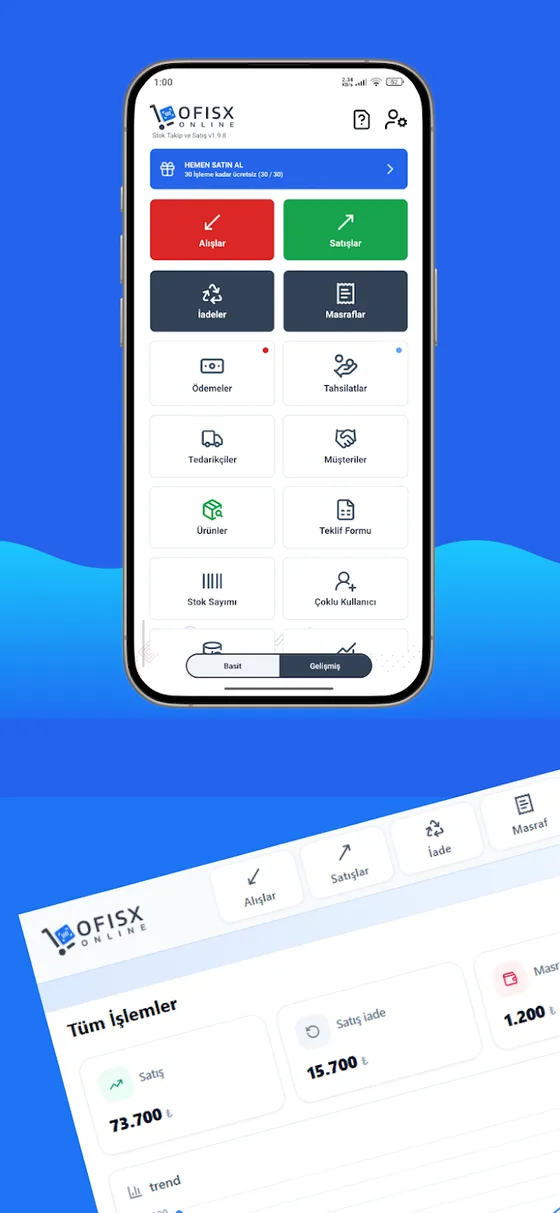
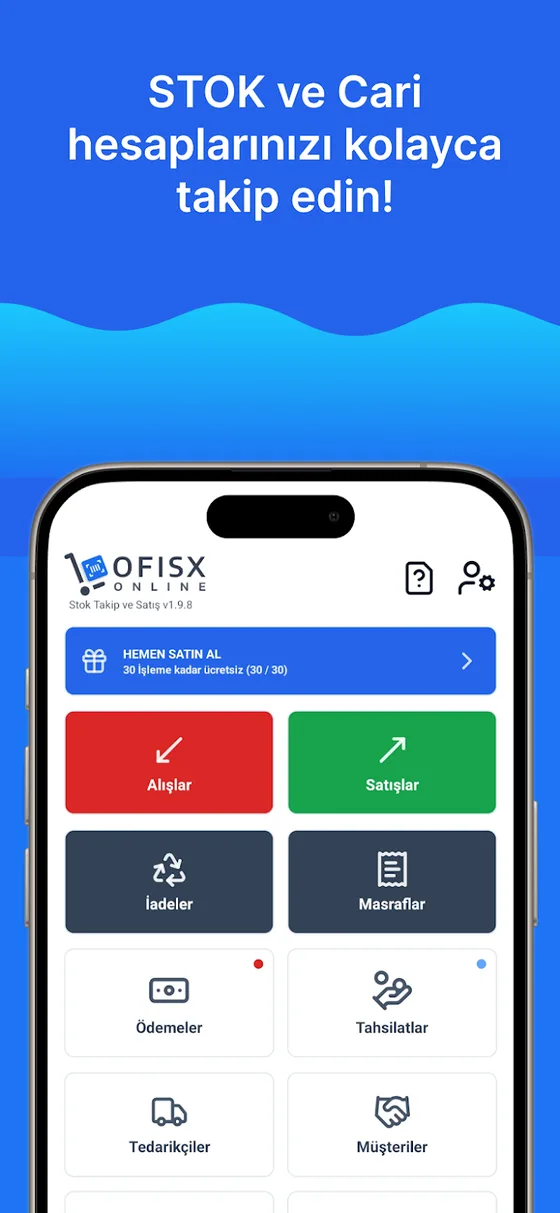
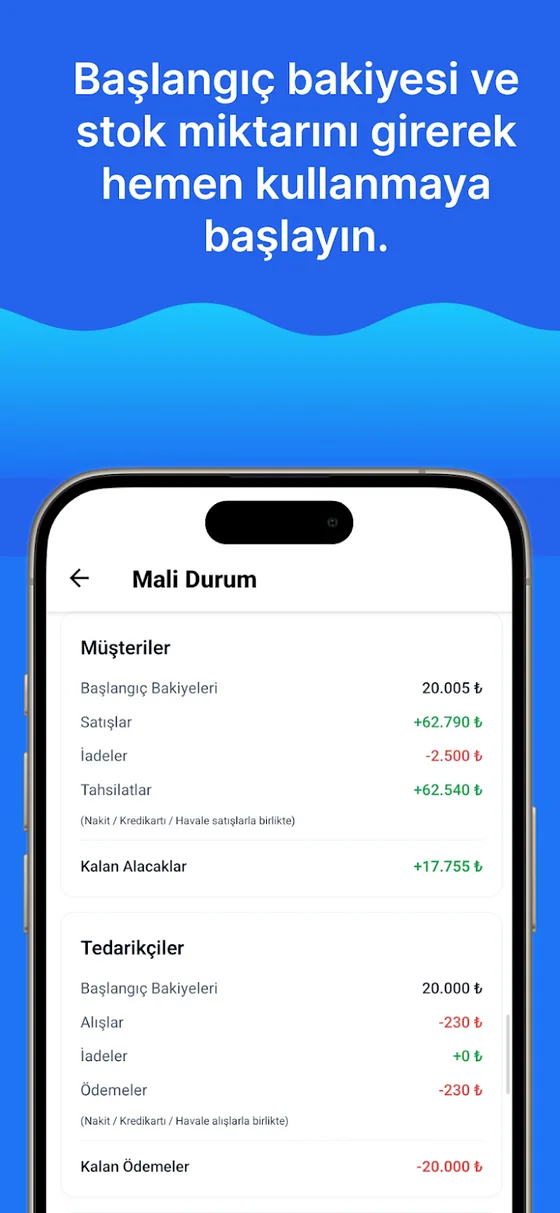
Product card and multiple barcodes, receiving and dispatch by barcode, counting screen.
Start tracking by barcode
Open a free account, import your Excel list with a barcode column and start scanning.